Phishing email example · Tactic: Urgency
Microsoft phishing email example: fake password change alert
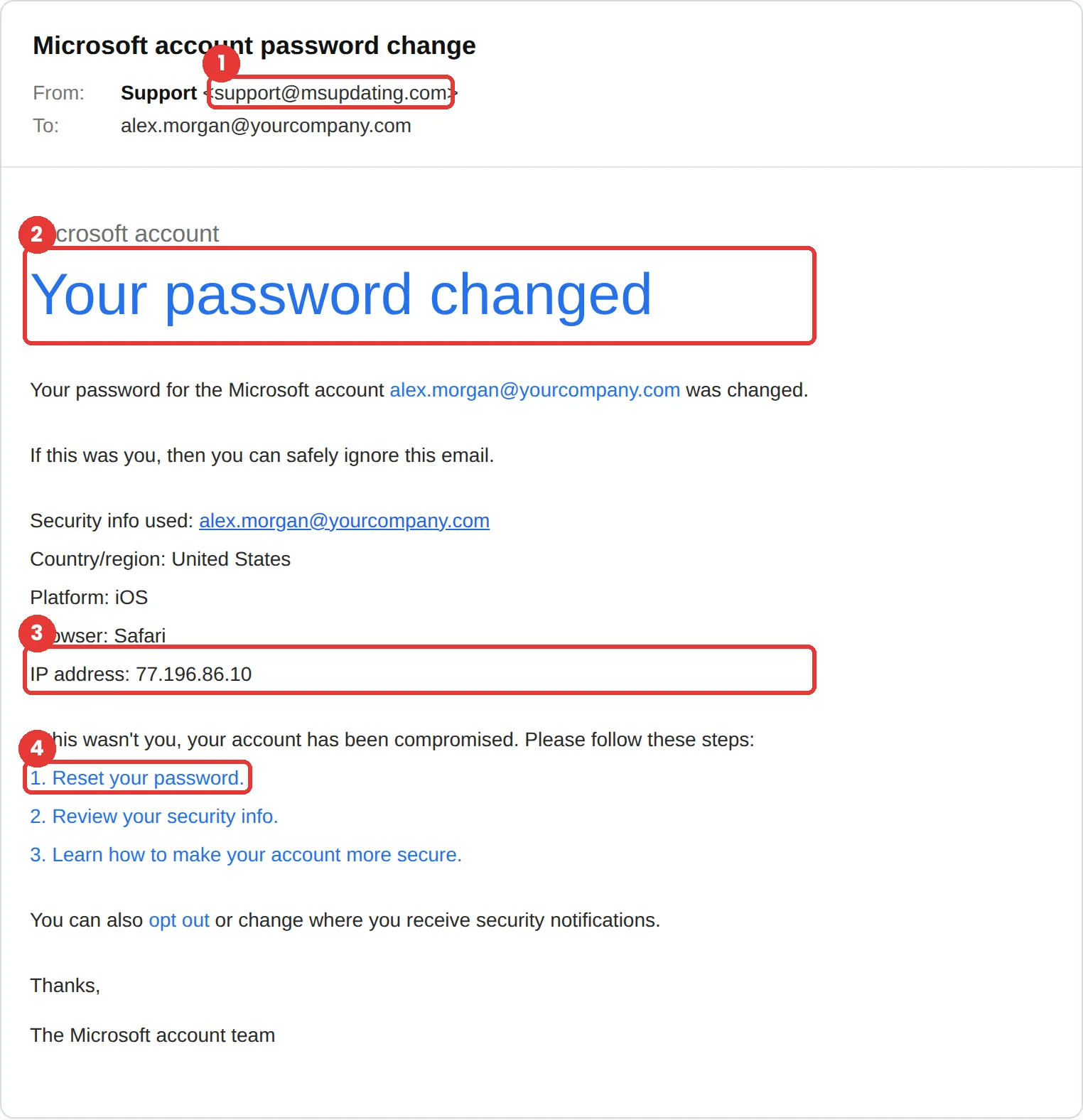
This Microsoft phishing email says the password for your Microsoft account was just changed and lists steps to take if it wasn’t you. The tell is the sender: Microsoft says its account team emails come from @accountprotection.microsoft.com, and this one comes from support@msupdating.com.
The red flags
- Subject
- Microsoft account password change
- From
- support@msupdating.com
- 1
Not a Microsoft domain
msupdating.com is not Microsoft. Microsoft account security emails come from @accountprotection.microsoft.com.
- 2
A scare headline
“Your password changed,” followed by “your account has been compromised,” is written to cut out any pause.
- 3
Details you can’t check
The location, browser and IP address are there to look technical. Nothing in the email lets you verify them.
- 4
The fix is a link
“Reset your password” in an email is the attack. Change a password by going to account.microsoft.com yourself.
Why this Microsoft scam works
“Your password changed” is frightening if you didn’t change it. The email answers its own question, “your account has been compromised,” and offers a numbered fix, so the reader goes straight to step 1.
It uses realistic detail: a country, a platform, a browser and an IP address. Specifics like these read like a system log rather than a person writing, and that makes the whole message feel automated and real.
The tactic: Urgency. A deadline collapses the gap between reading and acting. You react before you evaluate. See all six tactics.
Who gets this email
Anyone with a Microsoft account, from Outlook.com and OneDrive to Xbox and Windows sign-in. The same fear works on work accounts, so it is also sent widely to employees whose company runs on Microsoft 365.
Other versions of this scam
- An “unusual sign-in activity” alert with a Review recent activity button.
- A security code you didn’t ask for, followed by a message asking you to confirm it.
- A “your mailbox is almost full” or “messages are on hold” notice.
Check it in 30 seconds
- Check the sender domain against @accountprotection.microsoft.com.
- Don’t click the steps. Go to account.microsoft.com yourself and check recent activity.
- If you can still sign in with your usual password, it probably wasn’t changed at all.
- Report it with Outlook’s Report phishing button.
What real Microsoft email looks like
- Microsoft says emails from the Microsoft account team come from the @accountprotection.microsoft.com domain, and suggests checking the message headers and whether you actually asked for a code. Source: Microsoft Support
What happens if someone clicks
The “Reset your password” link usually opens a fake Microsoft sign-in page. The attacker collects your email address and password, and often the code from your authenticator app in real time. With your Microsoft account they can read your email, reach OneDrive files and reset passwords for other services that send reset links to that inbox.
How to report a Microsoft phishing email
- At work, use your email’s Report Phishing button, or forward the message to your IT or security team, before anything else. They can pull the same email from everyone else’s inbox.
- In Outlook, select the message and choose Report, then Report phishing. From other email apps, attach the message to a new email to phish@office365.microsoft.com. Microsoft: protect yourself from phishing
- Forward the email to the Anti-Phishing Working Group at reportphishing@apwg.org. APWG reporting
Already clicked? Close the page, change the password for any account you entered, sign out of active sessions, and report it anyway. Speed matters far more than blame.
Questions about Microsoft phishing emails
Microsoft says emails from the Microsoft account team use the @accountprotection.microsoft.com domain. Anything else, like support@msupdating.com, should be treated as phishing.
Don’t use the email’s links. Go to account.microsoft.com yourself and sign in. If you can, review recent activity. If you can’t, use Microsoft’s account recovery from the same site.
In Outlook, choose Report, then Report phishing. From another email app, attach the message to a new email to phish@office365.microsoft.com.
It is a phishing simulation template from Hook Security’s library, modelled on real attacks. Links and tracking have been removed from the screenshot.
Give your team a safe first encounter with emails like this.
Hook sends realistic simulations built from real attacks, then a short training moment right after any click. It runs on Autopilot.